Ordering MVRs for your fleet
Upload your driver list, pay once, and each driver signs off on their own report. Start at evergreencomply.com/mvr/bulk.
The screenshots show a made-up company, Cascade Ridge Freight, ordering 50 MVRs.
At a glance
| You | Each driver |
|---|---|
| 1. Upload your drivers | 1. Gets an email |
| 2. Review and pay | 2. Enters license details |
| 3. Track and download reports | 3. Signs the authorization |
Buyer step 1: Choose a report and upload your drivers
Pick MVR only or MVR + CDLIS for everyone. Then download the template, add one row per driver, and upload it. No account needed.
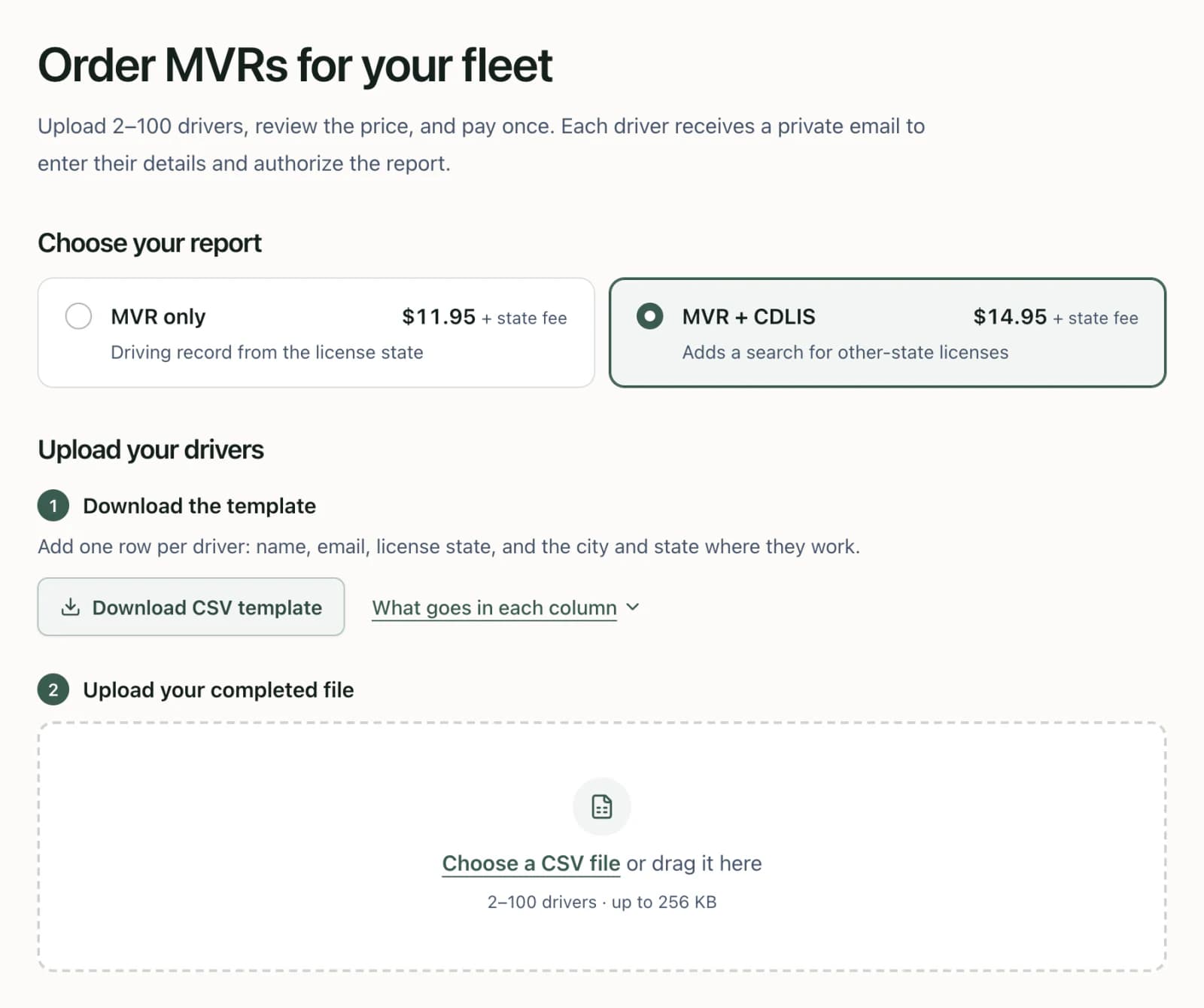
| Column | What to enter |
|---|---|
| driver_name | Full name |
| driver_email | Where we send their link |
| license_state | State on their license, like WA |
| work_city, work_state | Where they work, not where they live |
If a row has a problem, the page tells you which one to fix.
Buyer step 2: Review prices and pay once
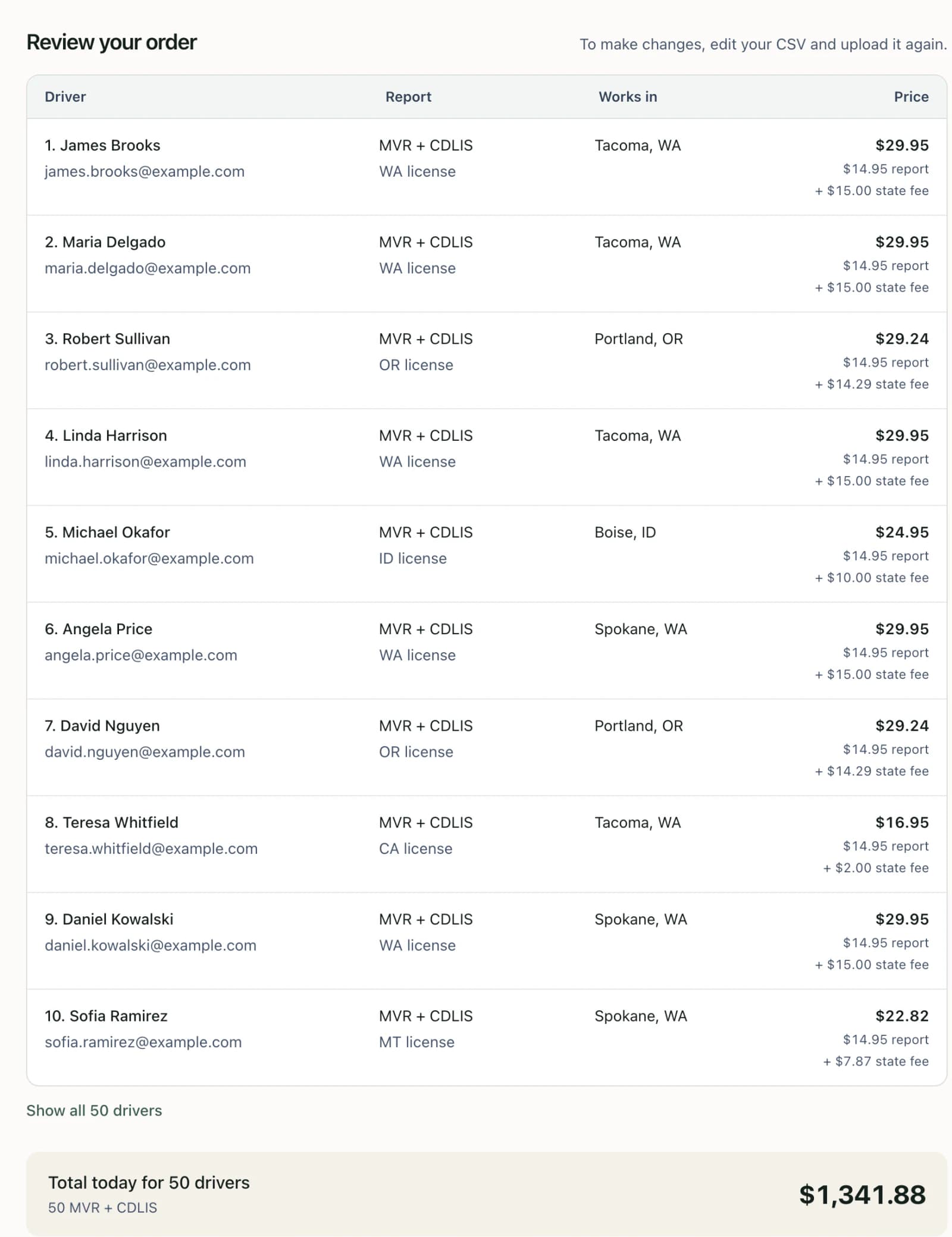
You see each driver’s price (report plus state fee) and the total. Here, 50 drivers come to $1,341.88.
Add your business name and email, check the boxes, and pay once through Stripe.
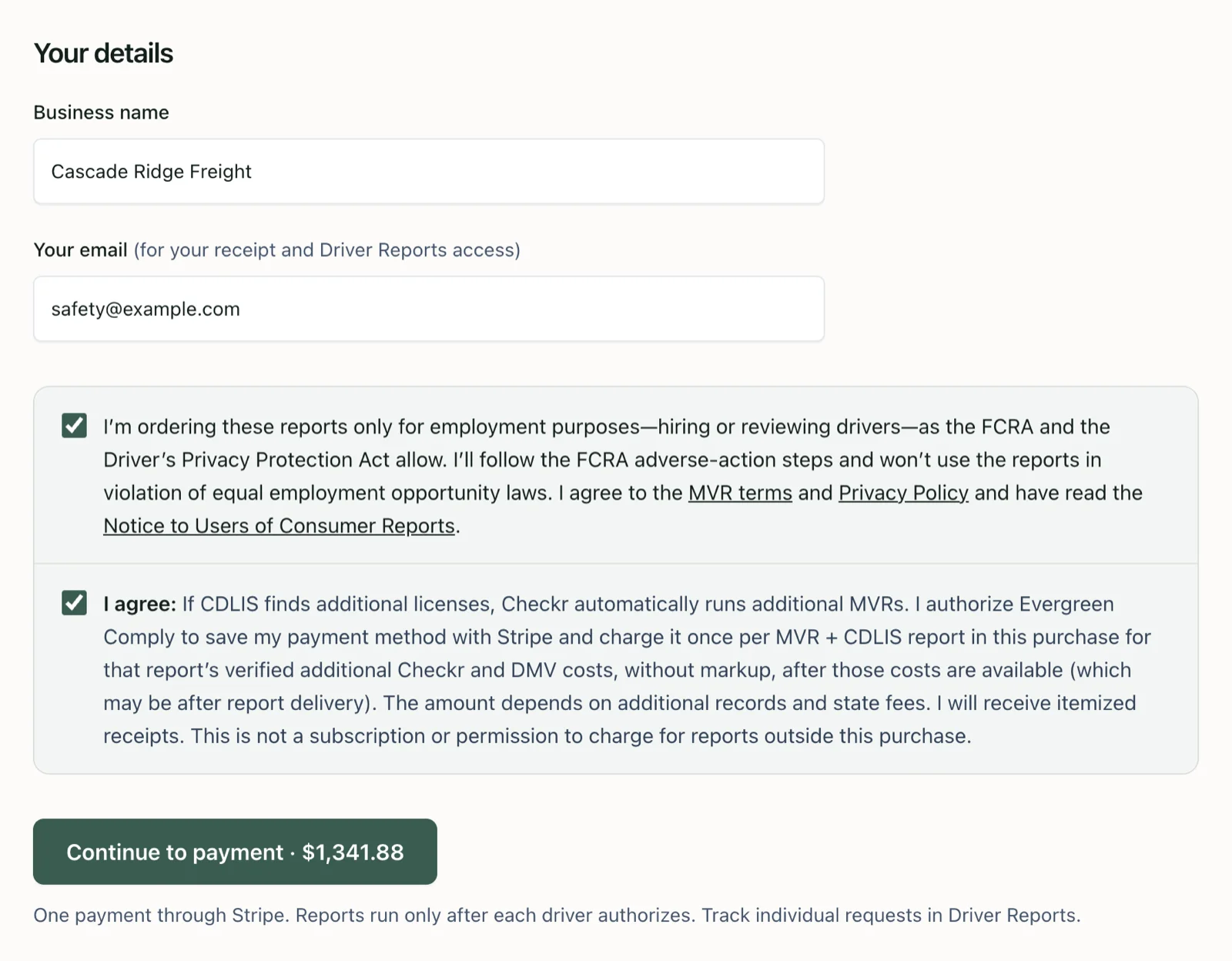
If CDLIS finds a license in another state, that extra record is billed later at cost. No report runs until the driver signs.
Buyer step 3: Track every driver and download reports
Sign in to Driver Reports with a code we email you; no password. The top shows where all 50 drivers stand. Click a number to see just those drivers.
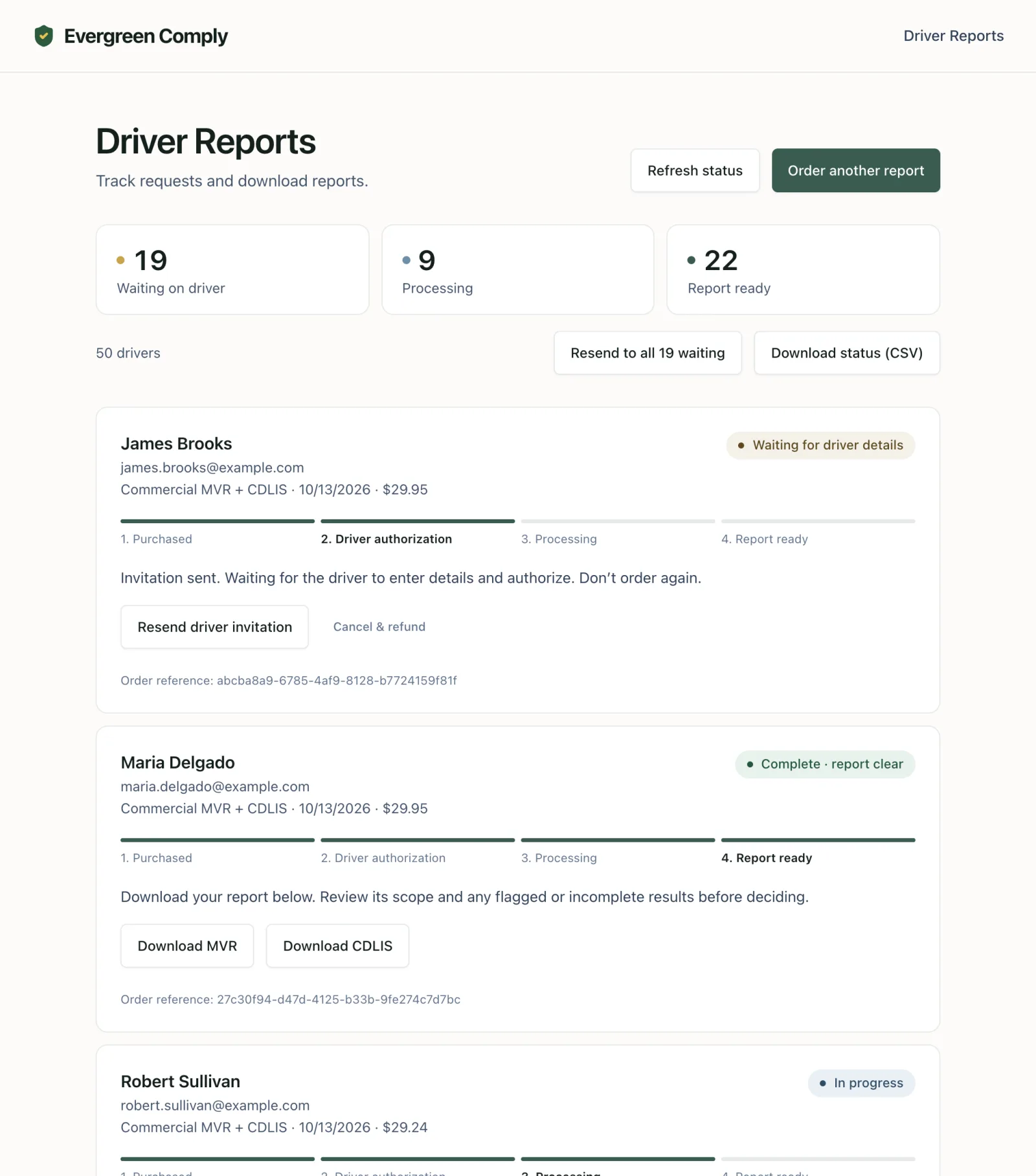
- Waiting on driver: we send them reminders automatically, and we email you if any haven’t started after a week. To nudge everyone now, click Resend to all waiting. You can also resend to one driver, or cancel for a refund.
- Processing: Checkr is getting the record from the state.
- Report ready: download it. We email you as each one finishes.
- Download status (CSV): a spreadsheet of every driver and where they stand.
Driver step 1: The invitation email
After you pay, each driver gets this email with your company’s name on it.
Subject: Cascade Ridge Freight requested your motor vehicle record
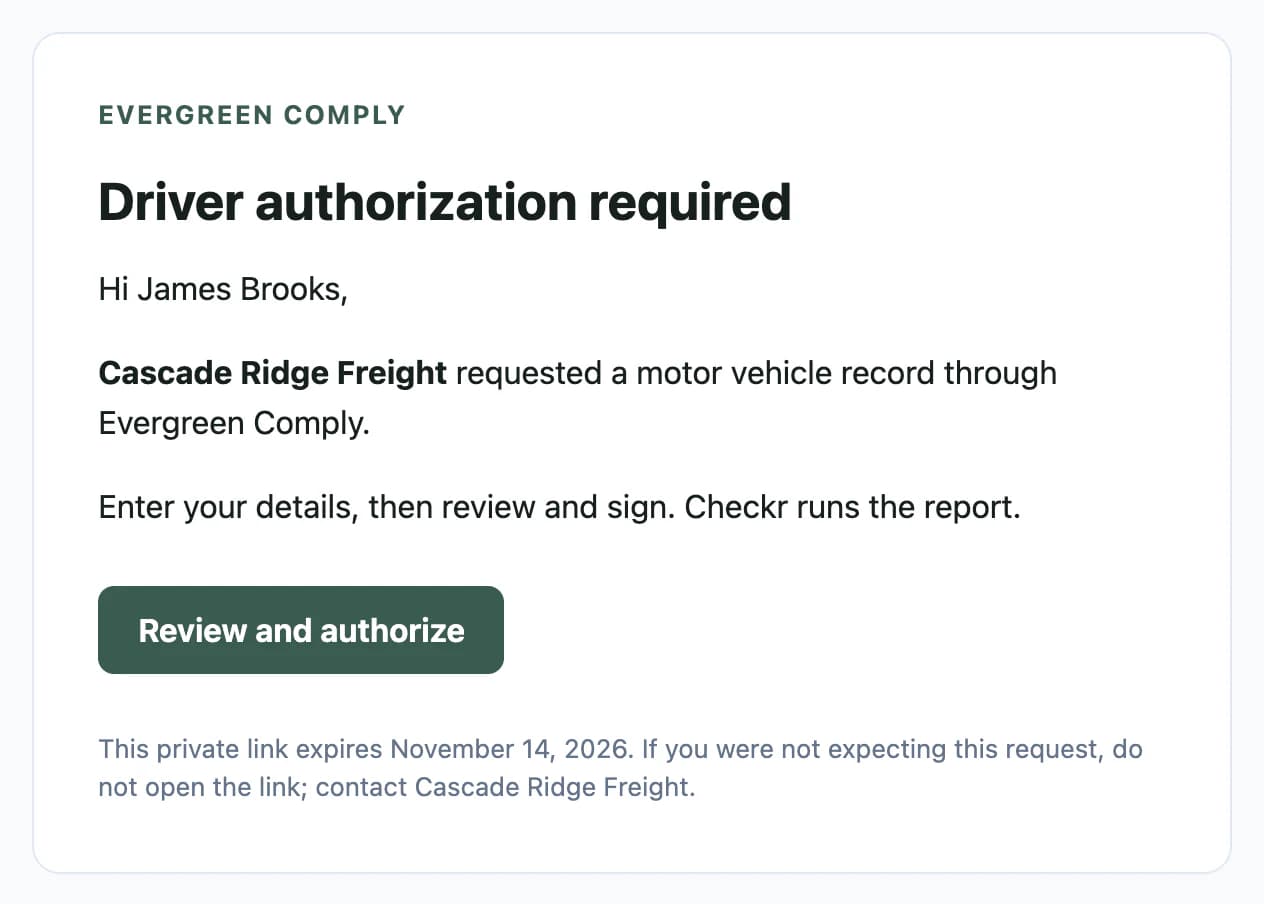
Give drivers a heads-up so they watch for it, and check spam.
Driver step 2: Enter license details
The link opens a short form that works on a phone, with their name already filled in from your upload. No account or password.
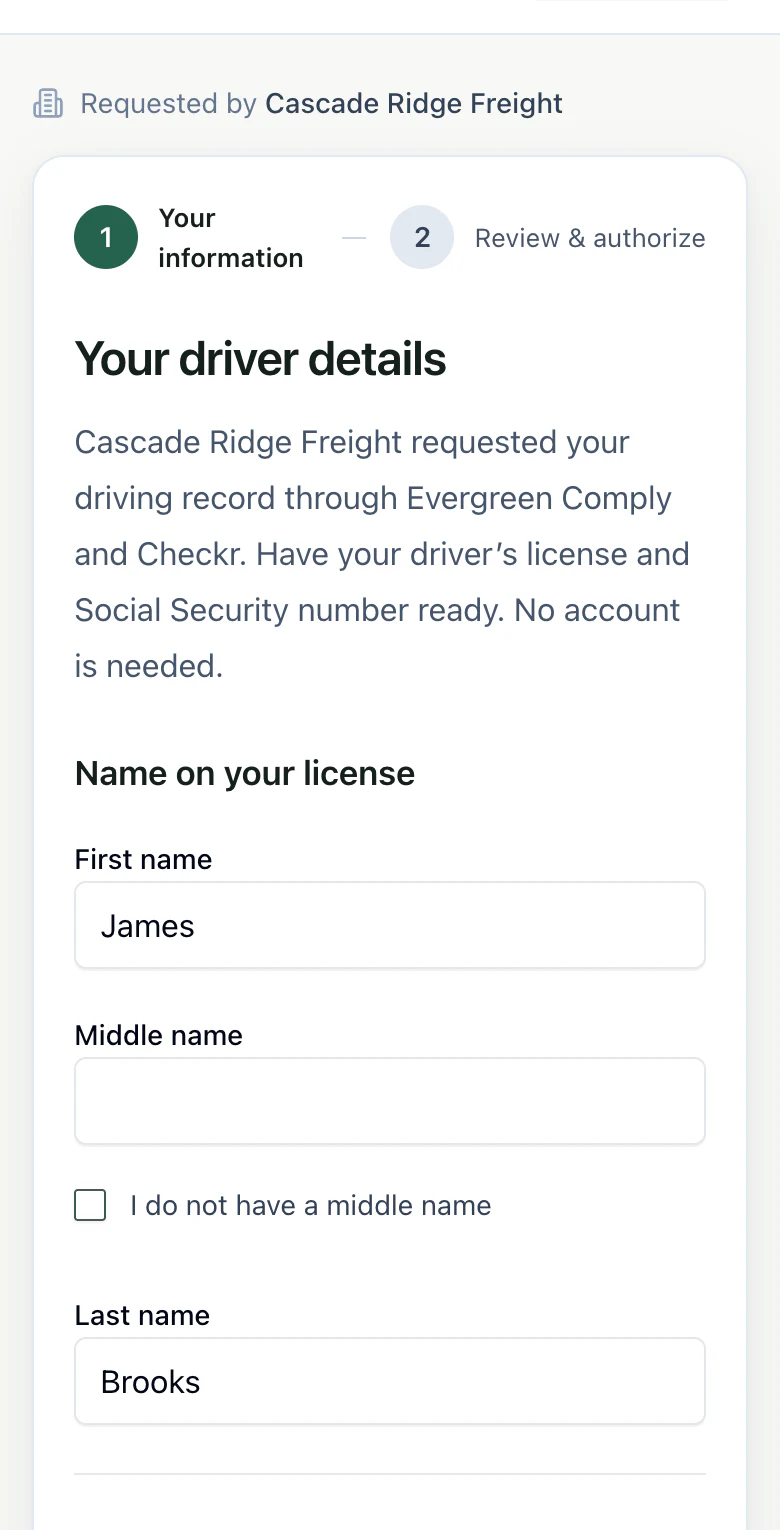
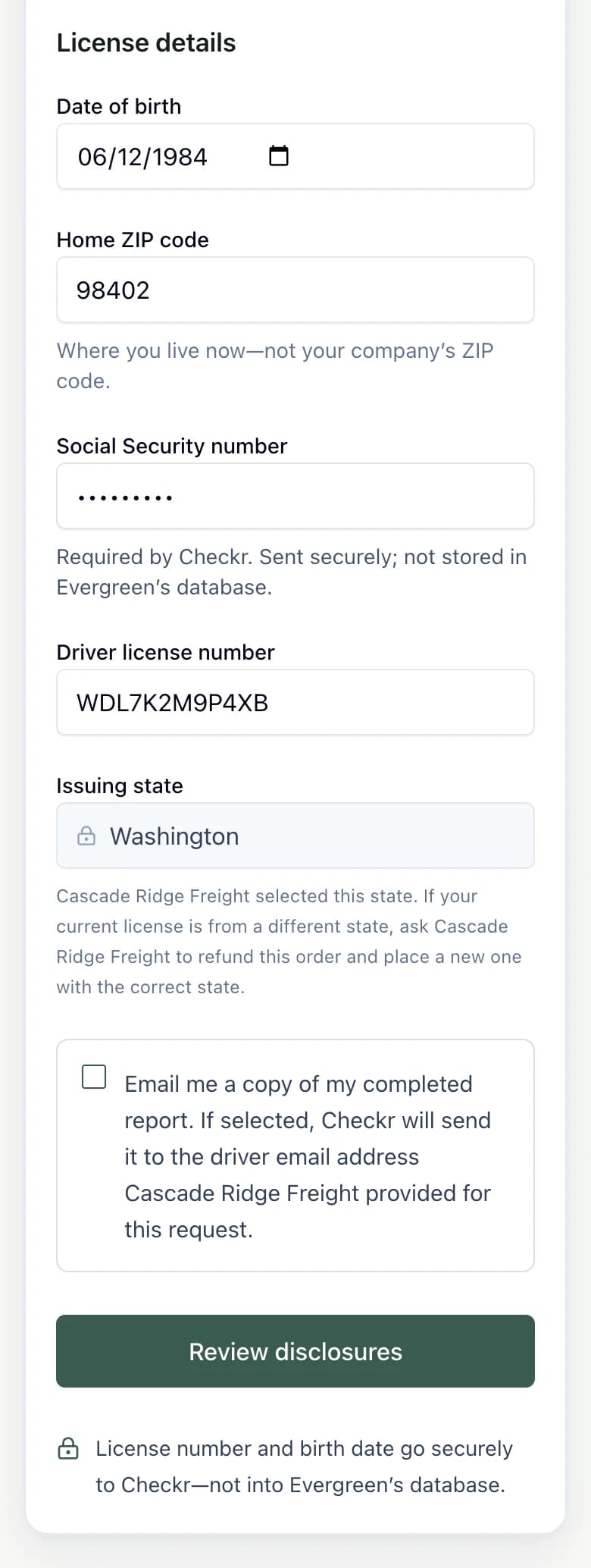
Their SSN and license details go straight to Checkr. Evergreen Comply doesn’t store them.
Driver step 3: Review, sign, done
Next, the driver reads Checkr’s disclosure and signs their name. That starts the report.
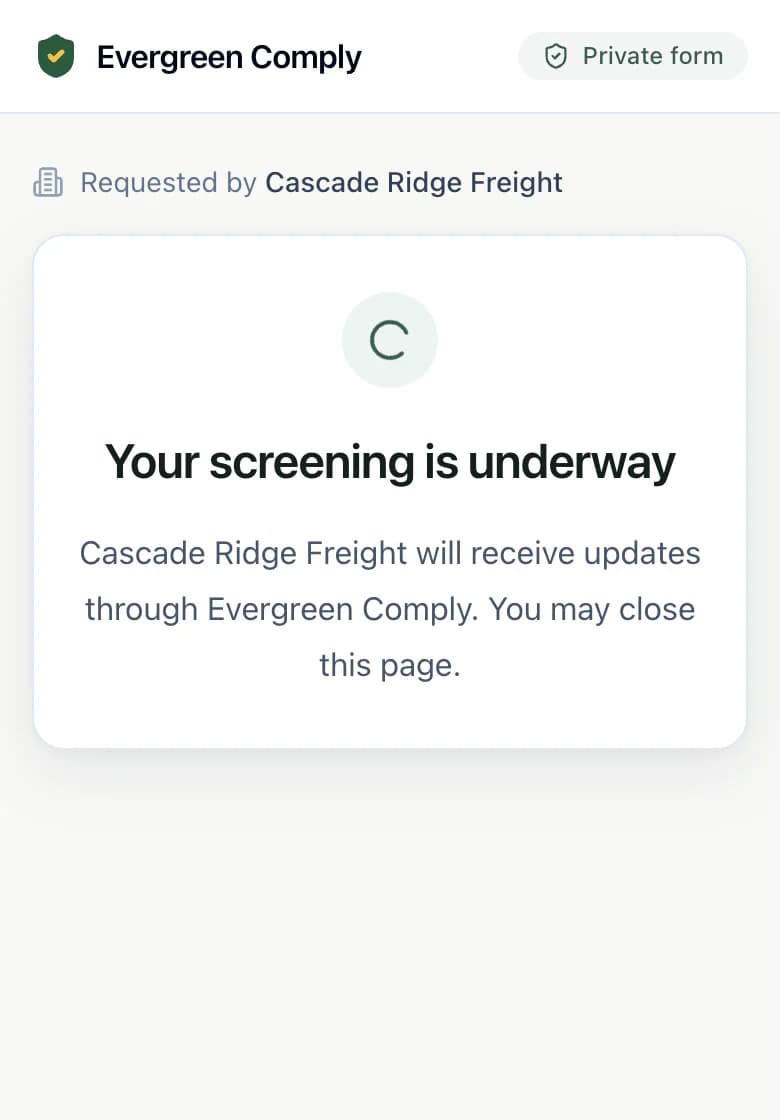
That’s it for the driver: a few minutes on a phone.
Questions? Email support@evergreencomply.com.
Start your order